Annotations
Introduction
The annotation feature allows users to view, create, and edit annotations within the Hexagon Smart Sites Client. This how-to guide details the procedure to set-up this feature, which requires a WFS service to store and display the annotations.
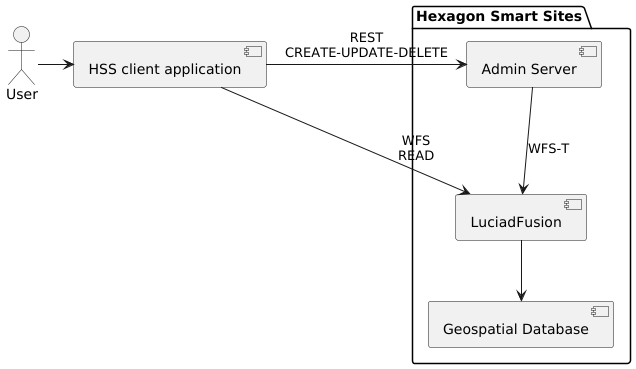
The following diagram illustrates the service architecture. The LuciadFusion server connects to a database storing the annotations, and serves the data to the Hexagon Smart Sites Client over a WFS service. For create, update and delete operations, the Hexagon Smart Sites client requests the required change from the Admin Server, which forwards them to LuciadFusion.
Database set-up
Creating the table
A compatible database must be available. We provide example files for PostGIS and Oracle Spatial.
PostGIS
Create a table with the following attributes :
create table annotations
(
    id                      bigint generated by default as identity primary key not null,
    workspace_id            bigint not null,
    user_id                 varchar(1000) not null,
    created_by              varchar(1000) not null,
    created_at              timestamp not null,
    last_updated            timestamp not null,
    camera_map_crs          varchar(20) not null,
    camera_map_state        text not null,
    title                   text,
    description             text,
    geometry                geometry(GeometryZ, 4979) not null
);

create index annotations_idx
    on annotations using gist (geometry);

create index annotations_workspace_id_index
    on annotations (workspace_id);
Please make sure not to alter the table names or datatypes.
Oracle Spatial
Create a table with the following attributes :
CREATE TABLE annotations (
                             id NUMBER(19) GENERATED BY DEFAULT AS IDENTITY PRIMARY KEY NOT NULL,
                             workspace_id NUMBER(19) NOT NULL,
                             user_id VARCHAR2(1000) NOT NULL,
                             created_by VARCHAR2(1000) NOT NULL,
                             created_at TIMESTAMP NOT NULL,
                             last_updated TIMESTAMP NOT NULL,
                             camera_map_crs VARCHAR(20) NOT NULL,
                             camera_map_state VARCHAR2(4000) NOT NULL,
                             title VARCHAR2(4000),
                             description VARCHAR2(4000),
                             geometry SDO_GEOMETRY NOT NULL
);

CREATE INDEX annotations_workspace_id_index ON annotations (workspace_id);

-- This creates a spatial index on the table. Unfortunately, it is not possible to create this index on an empty
-- table. To improve performance, run the following line after some annotations have been inserted.

-- CREATE INDEX annotations_idx ON annotations (geometry) INDEXTYPE IS MDSYS.SPATIAL_INDEX;
Please make sure not to alter the table names or datatypes.
Connecting the database to LuciadFusion
Once the table is created, connect LuciadFusion to the database. To do so, first create a file with the following contents:
# Configuration to connect to a PostgreSQL/PostGIS table for storing panorama metadata.

# Details for the JDBC connection.

# For PostGIS, uncomment the first line. For Oracle, uncomment the second line.
# driver   = org.postgresql.Driver
# driver   = oracle.jdbc.driver.OracleDriver


# For PostGIS, uncomment the first line. For Oracle, uncomment the second line.
# - ${host} is the name of the host running the database.
# - ${port} is the port on which the database is exposed.
# - ${db}   is the database schema.
# url = jdbc:postgresql://${host}:${port}/${db}
# url = jdbc:oracle:thin//${host}:${port}/${db}

# - ${user} is the name of the user to connect to the database with.
#   This user should at least be allowed to read and write the table.
user     = ${user}
# - ${password} is the password for the user to connect to the database with.
password = ${password}

# Do not modify anything below this line

table         = annotations
spatialColumn = geometry

# The necessary features. Do not modify this part.
featureNames.0 = id
featureNames.1 = title
featureNames.2 = description
featureNames.3 = workspace_id
featureNames.4 = user_id
featureNames.5 = created_by
featureNames.6 = created_at
featureNames.7 = last_updated
featureNames.8 = camera_map_crs
featureNames.9 = camera_map_state

# The index of the feature that can be used as primary key.
primaryFeatureIndex = 0
primaryFeatureAutoGenerated = true

# Disable caching.
maxCacheSize = 0
For PostGIS, name this file with a .pgs extension (for example, annotations.pgs).
For Oracle Spatial, use the .ora extension.
Then publish the database to a WFS service:
- Log in to LuciadFusion
- Open the LuciadFusion data tab and upload your database configuration file (
.pgsor.orafile). - Select the uploaded database configuration data item and click on
Create Service. - Change the Service Type to
WFS, enableTransactionaland clickCreate. - Navigate to the service page (click
Go to ... Service) - Write down the Service URL.
Configuration Hexagon Smart Sites Client
Navigate to the Admin Client and go to Site Settings. Under Services, enable Annotations and fill in the WFS URL with the values obtained above and choose a Feature Type from the dropdown.
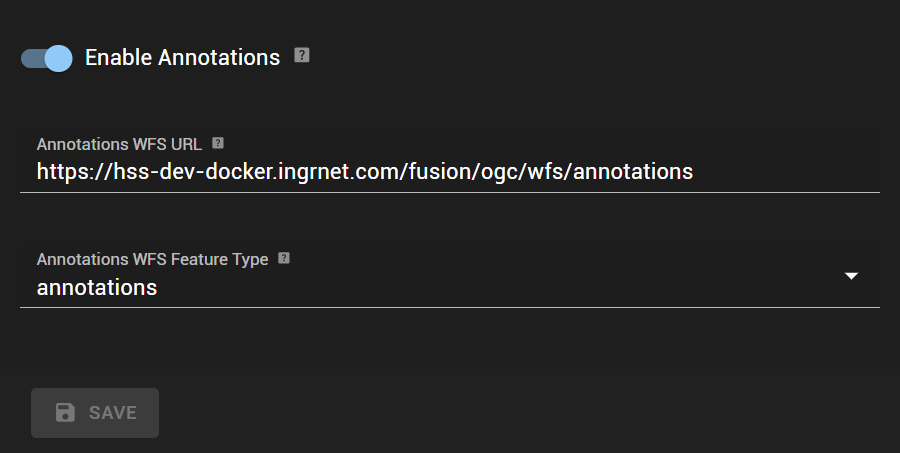
After configuring the annotations service in the Admin Client, the user can view, create, update and delete annotations in the Hexagon Smart Sites Client.